Upgrading to newer versions
1.80 introduces breaking changes (new authentication system, SQL 2017+, web.config changes, WSFED reconfiguration). upgrade.bat applies the web.config changes automatically and warns you about the steps it cannot do for you. Read Upgrading to iCL Portal 1.80+ and follow the remaining steps there in addition to the upgrade flow below.
Upgrading the web front end
The release package Portal v<version>.zip contains upgrade.bat, which upgrades an iCL Portal website in IIS in one go: it checks the server, backs up the website's files, replaces them, updates the web.config and migrates the databases. This is the recommended way to upgrade. If the package does not contain upgrade.bat (older releases), or upgrade.bat cannot be used, follow the manual upgrade.
upgrade.bat does not back up the databases. Backup the SQL Databases of iCL Portal (the host database and all tenant databases) and make sure that a restore actually works before you start the upgrade. The script asks you to confirm this.
Upgrading with upgrade.bat
Extract
Portal v<version>.zipinto a folder of its own, e.g.C:\Installers\Portal-v<version>. Do not extract it into the website folder.Double-click
upgrade.batin the extracted folder. It asks for administrator rights.Optionally, pass the folder of the website as an argument:
upgrade.bat "C:\inetpub\iCLPortal"Without it, the script looks for the iCL Portal in IIS. If it finds one, confirm it with
ENTER; if it finds several, choose one by its number. If it finds none, it asks for the folder.Answer the questions of the checks (see below). Nothing is changed until all checks have passed.
Wait until the script has finished, then read the report
upgrade-report.txtin the backup folder. Read it after every upgrade — it lists the warnings, e.g. files that were kept or manual steps that are still required.
upgrade.bat connects to the SQL Server of the connection string Default as the Windows user that runs it, and so does the database migrator it starts. Run it as the user you would run migrate_databases.bat with.
What upgrade.bat checks
Before anything is changed, the script checks the following. If one of the checks fails, it stops and nothing is changed.
- It was started from an extracted release package (not from a website folder), with administrator rights.
- .NET Framework 4.8 is installed.
- The folder is an iCL Portal website, and its
web.configcan be read. - The versions: a downgrade (the package is older than the website) has to be confirmed. If the website is older than 1.80, it warns you about the manual steps of 1.80 (re-create the client credentials, configure WSFED / Azure Entra ID per tenant, Salesforce authentication removed — see Upgrading to iCL Portal 1.80+).
- The application pool of the IIS application is not used by other applications. If it is, you are asked whether to continue.
- The SQL Server of the connection string
Defaultcan be reached as the user that runs the script, and it is SQL Server 2017 or newer. - It asks: "Have you backed up the databases (and checked that a restore works)?"
What upgrade.bat does
- It records the newest database migration of the host database, so that the databases can be migrated back to it later.
- It backs up the website's files into a folder next to it,
<site>.backup-<yyyyMMdd-HHmmss>-net48(e.g.C:\inetpub\iCLPortal.backup-20261119-153000-net48).App_Data, the logs and a file storage (FileBlobStorageRoot) inside the website are not backed up — the upgrade does not touch them. The backup folder also containsbackup-manifest.json,revert.batandupgrade.ps1. - It stops the application pool — only while the files are replaced — and waits until its worker processes (
w3wp.exe) have exited. If one keeps running and locks the files, it asks whether to end it (default: yes). If a file is held by another process, the upgrade stops and nothing is changed. - It copies the package into the website:
binand the other folders of the website then equal those of the package (DLLs that are no longer part of the package are removed). The following is kept:web.config,NLog.configandbin\DataMigrationPageSizes.json,- plugin DLLs that are named in the
<plugins>section of theweb.config— the report reminds you to check that they are compatible with the new version, - your own files and folders that are not part of the package (listed as a warning in the report),
App_Data, the logs and the file storage.
- It updates the
web.config— only where needed. Values are never lowered, and everything else, including the connection strings and passwords, stays as it is:- the assembly binding redirects in
<runtime>are taken from the package'sruntimes.xml(you no longer need to copy them by hand), - the changes of 1.80:
targetFramework="4.8", thenetstandardreference,maxQueryString/maxQueryStringLengthof32768(see web.config changes), TrustServerCertificate=Trueis added to the connection stringDefault, unless it already containsTrustServerCertificate,- the Entity Framework database initializer is removed (
disableDatabaseInitialization="true"), so that only the migrator migrates the databases — never the portal when it starts.
- the assembly binding redirects in
- It starts the application pool again right after the files have been copied, then runs the database migrator (the same as
migrate_databases.bat).
From iCL Portal 1.80 onwards, the migrator also runs data migrations (not just schema changes). These can take considerable time on large tenants. The system is already operable and can be used while the data migrations are running.
If the upgrade fails
- If copying the files fails, the website is reverted to the backup automatically.
- If the migrator fails, the script offers to revert the upgrade (default: yes). It migrates the databases back to the migration it recorded before the upgrade (with the migrator of the new version, which knows how to undo its own migrations) and restores the files from the backup. Data that was written by data migrations that already ran is not undone — restore your database backup if needed.
- If the migrator fails with "The COMMIT TRANSACTION request has no corresponding BEGIN TRANSACTION", run the migrator directly as described in Migrator fails with "The COMMIT TRANSACTION request has no corresponding BEGIN TRANSACTION".
- If PowerShell scripts are blocked by a policy, or the IIS management (Windows feature IIS Management Console) is not installed, upgrade manually.
Reverting with revert.bat
Each backup folder contains a revert.bat. To go back to the version before the upgrade, double-click revert.bat in the backup folder (no arguments needed). Alternatively, run it from the release package and pass the website and, optionally, the backup folder (default: the newest backup of the website):
revert.bat "C:\inetpub\iCLPortal" "C:\inetpub\iCLPortal.backup-20261119-153000-net48"
The script
- first migrates the databases back to the migration recorded before the upgrade (you are asked),
- stops the application pool and restores the website's files from the backup (
App_Data, the logs and the file storage are not touched), - keeps the current
web.configandNLog.configin<backup>\config-before-revert-<time>\, - starts the application pool again.
Data that was written by data migrations is not undone by revert.bat. If you need it undone, restore your database backup.
Manual upgrade (fallback)
Use these steps if upgrade.bat cannot be used or fails.
- Backup the SQL Databases of iCL Portal and make sure that a restore actually works
- Backup your current Web.config and NLog.config of the iCL Portal Web Front-end
- Delete all files in the bin folder of the website except
App_Data, Web.config and NLog.config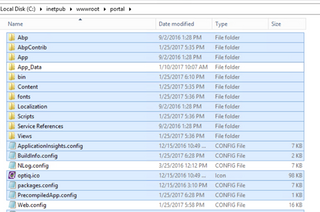
In case some file cannot be deleted because it is being used by another process (IIS), open IIS Manager and recycle the application pool of the iCL Portal website.
Do not restart IIS, as this will interrupt any pending requests and may cause data corruption and/or data loss!
Extract the iCL.Portal.xxxx.zip archive into the web-site folder.
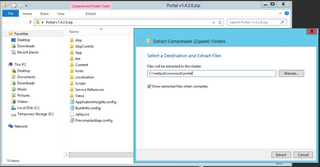
Open the web.config file and replace the
<runtime>...</runtime>element with the one provided in the package (runtimes.xml)In the web.config, remove the Entity Framework database initializer: under
<entityFramework>/<contexts>, replace the<context>element of thePortalDbContext(including its<databaseInitializer>) with the following element. From now on, the portal no longer migrates the databases when it starts — onlymigrate_databases.batdoes.
<context type="iCL.Portal.EntityFramework.PortalDbContext, iCL.Portal.EntityFramework, Version=1.0.0.0, Culture=neutral, PublicKeyToken=null" disableDatabaseInitialization="true" />
If you upgrade from a version older than 1.80, apply the web.config changes of 1.80.
finally, run the "migrate_databases.bat" file. This step is mandatory. It will ask you whether you would like to apply any pending DB schema changes to all the tenant databases of iCL Portal.
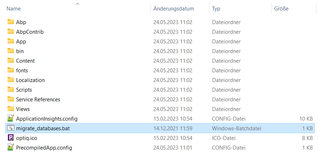
Confirm with
Yand press enter.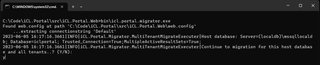
From iCL Portal 1.80 onwards, migrate_databases.bat also runs data migrations (not just schema changes). These can take considerable time on large tenants.
The system is already operable and can be used while the data migrations are running. Users can continue working; you do not need to keep them locked out until the migrations finish.
- Follow additional instructions in the provided readme (like modifications of the Web.config) in the accompanying upgrade manual.
Upgrading the dox42 host
The dox42 host ships as a self-contained Windows service (iCLPortalDox42). Its release packages contain empty operator-settable values, so blindly copying a new package over an existing install would wipe the connection strings, iKey, tags, and log folder. Use upgrade.bat instead.
- Do not extract the new package over the existing install.
- Extract the new
Dox42Host v{version}.zipinto a fresh folder (e.g.C:\Installers\Dox42Host-v{version}). - Run
upgrade.batas administrator from the extracted folder, passing the existing install path (or enter it when prompted):upgrade.bat "C:\Program Files\iCLPortalDox42" - The script will:
- stop the
iCL.Portal.Reporting.Dox42$dox42_<MACHINE>service, - mirror the new
bin\over the old one (removed DLLs are purged), - merge the existing operator values (Default connection string, StorageConnectionString, iKey, ApplicationInsights
customer/environmenttags, NLoglogDir) from the old config into the new config files, - copy the updated root scripts (
install.bat,uninstall.bat,config.bat,start.bat,upgrade.bat,upgrade.ps1), - offer to restart the service.
- stop the
- If the new release introduces additional operator-settable keys, re-run
config.batin the install folder afterwards to review them.