Getting an access token
Get the Bearer Token
To try out the secured web services in Swagger, the Swagger UI needs the session bearer token in its top bar. If you are signed in to the portal in the same browser, it fills the token in by itself (more). Otherwise you enter it once; it can be copied from the browser Dev Tools.
This token belongs to your browser session and is only suited for trying out the API. For integrations, get an access token via the Client Credentials flow.
Open the DevTools of your browser
First, navigate into the portal and tenant, in which you want to use the API.
E.g. tenant optiq on the testportal
Once there, you navigate to a view, where a refresh-button is available - basically every view offers a refresh-icon in its table lists:
- workbooks
- teams
- inspections
Now you press the F12 key in your browser; the DevTools should now open in a new window.
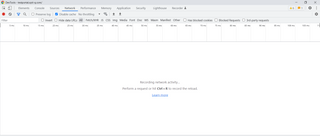
Navigate to the network tab
In the DevTools view, find the Network tab and open it.
If you find entries in this list, you can clear them with the stop-icon in the top left. (Chrome)
Refresh the Portal view
Now you navigate back to the portal browser, and hit the refresh icon in your current view.
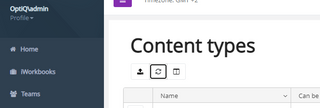
This will create a network activity in your DevTools window, where you now navigate back to.
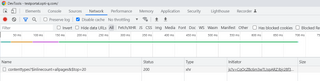
Copy the bearer token
In the DevTools, you now click on the entry in the list. There are several tabs visible - you have to be in the Headers Tab.
Scroll a bit down until you find the entry for authorization:
You now select the whole entry, starting with Bearer up to the end of the long lines of strings.

e.g. Bearer GgTJCFU0tTS5y-gw6oFR1qdLzOKNd8zyxPINbiNG8iOmfphyk8H45KLwu0iZVapmndbUNcFj_H-Px9zy4pTyfXFPMVTyYPNvvhhKfkKMVWHBfP8Xqx0AY3z4fudK3NJdottSycsFCfSNmCVYwOHL8dK_z3KdcBfhstNyDbqfj79dkmPmaGEG2ANOmwJqymFtF8BO7keKSA39Q8hw-fmJ-tWDnCdTI_oQFvR8PcuHJprSIopSAjutLoBAy9g-L5n6mHPNNWt4xnVPspd00VTyRUIX_A6axEzqwYS1g37z79PJPVHTojcNCNmJ57oTGTiB6i03S-jqDNG79M6fhREhXWicXCZr2qeiFjv1TaE8Bq7DNYx5DasdhFCWimCV8QZSxWnfnvn6op12713o9uHrh2xkgssfH0FifJaMmA5ner0PdP3qbMQVD_7WvOFfEWHJAhswvdamt0lkW9N8GSRDYOLewL_AVsKnfyOWkyhnXWXkoSx0SbnjITypZCJZSSYKOC_A23bJi-V6Jxc_CbmG0m9to7Ilbb8_UnB9uuRWC-7Yyy1z1LfoLYJlyQc9B65Slk4fReXgHADQEufN8HrJ-pex9btAh2O3StgeYqoU4OzHopZDrJcUXSbFPop6c7Fv_DksDPRcVFm_QbnrwWudDg
Do not select anything beyond the bearer code like 'cache-control:' though, this would make the bearer code invalid.
Enter the bearer code in Swagger
With this code copied, you can now return to the swagger tab in your browser, paste it into the field in the top bar, to the right of the document URL (placeholder Bearer <access token>), and click Explore or press Enter. From then on, every action you execute sends the token. More about authenticating in Swagger